Sign in and start browsing.
Your account opens directly to your cloud browser. Enter a website and use it yourself.
Your own virtual browser, with your websites, tabs, and signed-in sessions. Open it from any device with one personal link. Use it yourself, and connect your agents whenever you want a hand.
Free to start. No installation or API setup. Sign in and open your browser.
Open a browser. Make a change.
See exactly what your agent sees.
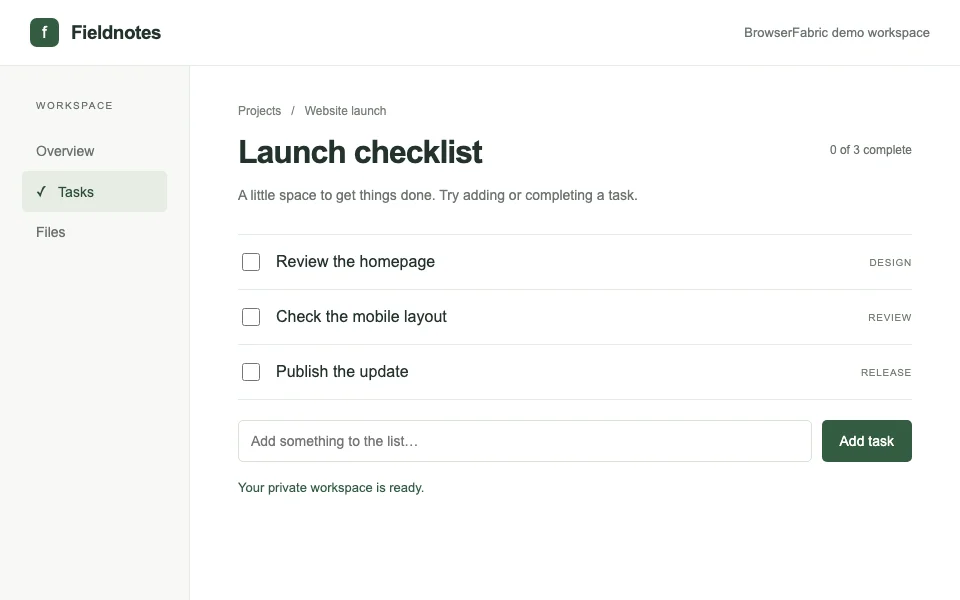
A real Chromium session, just for you.
Two minutes. No account needed.
Real browser. Real actions. No setup.
This demo uses an isolated sample workspace. To browse your own websites, create a free account.
Open your own browserA familiar browser with a permanent home in the cloud. No setup commands, no new session to create each time.
Your account opens directly to your cloud browser. Enter a website and use it yourself.
Open your tabs and sign in to the services you use. Your saved sessions stay encrypted in the cloud.
Bookmark your personal browser address. Sign in from another device and find your open and saved tabs.
Keep your browsing in one place. Use it on your own, or give your agents access to help with a task.
Open websites, click, type, and sign in just as you would in a browser on your computer. Your virtual browser runs in the cloud, ready to use from another device.
Open your cloud browserSign in to your websites in your cloud browser. Saved tabs keep encrypted cookies and session state, so you can return without starting from scratch.
Encrypted loginsPermanent tabs keep their login state. Idle ones go to sleep after 15 minutes and wake on demand, same tab, same login, for you or any agent.
Permanent tabsConnect an agent when you have a task for it. You share the same browser tabs, can watch its progress, and can take over whenever you need to.
Live view and takeoverYour agent. One instruction.
Set up your key once. Then tell Codex or Claude what you want to do on the web.
Your free key is created after sign-in. Copy it from the dashboard. Includes 2,000 sessions per month.
Create a free accountMake your key available in the agent’s environment as BROWSERFABRIC_API_KEY.
Codex on your machine: set the variable in the environment used by Codex. Keep the actual key out of prompts and source control.
Cloud agents: use your provider’s secret manager to expose the variable while the agent runs. Allow HTTPS access to www.browserfabric.com and api.browserfabric.com.
Codex cloud: use a runtime environment variable; its setup-only secrets are removed before the agent starts. Enable agent internet access for the two domains above.
Codex environment guidePaste the instruction into your agent. It reads the guide and calls BrowserFabric with its existing terminal or HTTP tools.
Read https://www.browserfabric.com/SKILL.md and use BrowserFabric for this task. Authenticate with BROWSERFABRIC_API_KEY from the environment; keep the key private.

Open https://example.com in a cloud browser, report the page title and main heading, then close the session.
Point any agent at your browser: connect an MCP client, use the Python or TypeScript SDK, or call the API directly. Existing Playwright workflows can connect over CDP.
Add to your client’s remote HTTP MCP configuration. Replace YOUR_API_KEY.
{
  "mcpServers": {
    "browserfabric": {
      "url": "https://www.browserfabric.com/mcp",
      "headers": {
        "Authorization": "Bearer YOUR_API_KEY"
      }
    }
  }
}
Configuration example. Available tools appear in your MCP client.
pip install --upgrade browserfabricSet BROWSERFABRIC_API_KEY in your environment.
import asyncio
import browserfabric

async def main():
    async with browserfabric.browser(
        base_url="https://api.browserfabric.com"
    ) as session:
        await session.navigate("https://example.com")
        state = await session.observe_page()
        print(state["elements"])

asyncio.run(main())
Opens example.com, prints its observed controls, then closes the session.
npm install browserfabric@latestSet BROWSERFABRIC_API_KEY in your environment.
import { BrowserFabric } from "browserfabric";

const cloud = new BrowserFabric({
  baseUrl: "https://api.browserfabric.com",
});
const session = await cloud.createSession();

try {
  await session.navigate("https://example.com");
  const state = await session.observePage();
  console.log(state.elements);
} finally {
  await session.close();
}
Opens example.com, prints its observed controls, then closes the session.
Every plan includes your personal cloud browser, saved tabs, encrypted sessions, and optional agent connections.
Your everyday browser in the cloud.
More room for your daily browsing.
For more tabs and frequent use.
For larger browsing workloads.
Prices in USD. Check your billing dashboard for upgrade availability.
No. BrowserFabric is your personal browser in the cloud. Sign in, enter a website, and browse with your mouse and keyboard. Connecting an agent is optional.
Your browser address requires you to sign in to the account that owns it. Copying that address does not give someone else access. Separate live-view sharing links are intended for explicit tab sharing.
Yes. Start the live browser on this page for a private, two-minute session. Add a task, click a checkbox, or run the agent example in the sample workspace. Create a free account to browse your own websites.
Sign up for a free BrowserFabric account, make your API key available to the agent as BROWSERFABRIC_API_KEY, and give it the instruction on this page. The agent reads the BrowserFabric skill and uses the cloud API. It needs a way to make HTTP requests and network access to BrowserFabric.
Any agent that can use an authenticated HTTP MCP server or call a REST API. Python and TypeScript SDKs are available, and Playwright clients can connect directly over CDP.
No. You sign in yourself, in the live view or in any tab, and BrowserFabric keeps the logged-in session encrypted at rest. Agents reuse the signed-in tab; the password is never given to them, and password fields are masked in screenshots and redacted from page observations.
Yes. A tab is shared: you can watch it live, see the agent’s cursor, click or type yourself, and hand it back. Different agents can continue in the same tab too. After a person steps in, an agent should observe the page again before continuing.
A permanent tab keeps its login state. If nobody touches it for 15 minutes it goes to sleep and wakes on demand, same tab, same login, when you or an agent returns. Temporary tabs simply close. Websites can still expire logins on their side.
BrowserFabric reports the outcome and returns recovery information, including completed steps and current page state when available. A failed or cancelled action may already have changed the page; inspect before retrying.
Create your cloud browser for free. 2,000 sessions a month, and your logins stay yours.